The layout you know, built for the Mac.
The Avro phonetic layout from Windows and Linux, as a proper macOS input source.
Avro phonetic layout
The same transliteration rules as the original Avro Keyboard, so your muscle memory carries over. Probhat and Unijoy are built in too.
Candidate window
Alternate spellings appear as you type; pick one with the arrow keys or its number. Horizontal or vertical panel.
Dictionary suggestions
Optional dictionary lookups show real words alongside the phonetic candidates.
Auto-correct and auto-dictionary
Corrections for common slips, plus a personal dictionary that remembers what you pick. Add your own shortcuts too, like macOS text replacements: addr for your address.
Native Swift
Rewritten on Apple's Input Method Kit. No CocoaPods, no bundled libraries; SQLite comes from the system.
Universal builds
CI produces Apple Silicon, Intel and universal binaries for every release, signed and notarized when certificates are configured.
Three keyboard layouts
Type phonetically, or use the fixed layout you already know. Switch any time under Preferences… → Keyboard Layout.
Avro Phonetic
Write Bangla in Latin letters the way it sounds: ami becomes আমি.
The default. Candidates, dictionary suggestions and auto-correct work with this layout.
Probhat
Every key types a Bengali letter directly: k ক, v আ, / hasanta.
The same key map as Probhat in Avro Keyboard for Windows.
Unijoy
The Bijoy-style layout: j ক, f া, g hasanta.
g before a vowel sign makes the full vowel: g f → আ. Press g twice for a visible hasanta.
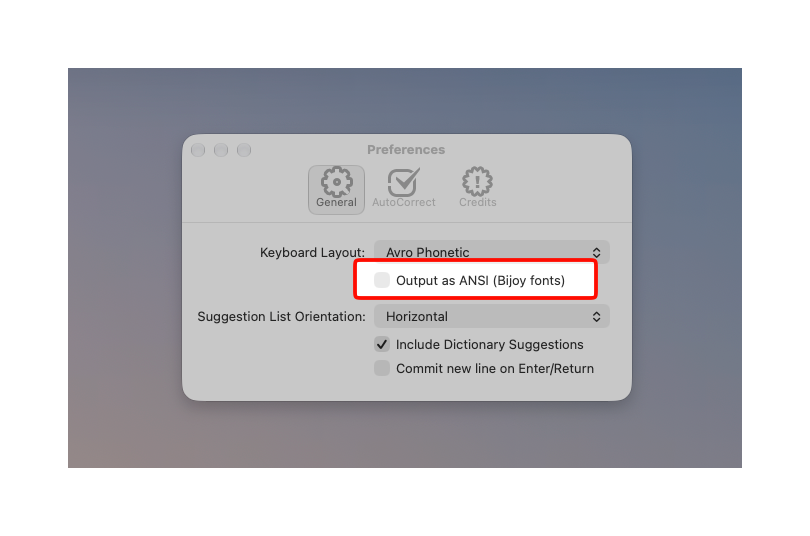
ANSI (Bijoy) output
Type in the legacy Bijoy encoding used by SutonnyMJ and other Bijoy fonts, instead of Unicode. Turn on Preferences… → Output as ANSI (Bijoy fonts).
Works with all three layouts, with the same conversion as Avro Keyboard for Windows. Set a Bijoy font in your document, or the text shows as Latin letters.
- Avro Phonetic: the word you pick from the candidate bar is converted as it is committed.
- Probhat and Unijoy: the word you are typing stays underlined, already shown in Bijoy, until you press space, Return or another key outside the layout.
- Delete removes the last key you typed while a word is underlined.
Everything it does
Every feature in the current release, in one place.
Typing
- Avro Phonetic, with the same rules as Avro Keyboard for Windows:
ami→ আমি - Live preview: the highlighted spelling shows underlined in your text as you type
- Candidate bar, horizontal or vertical
- Pick with the arrow keys or 1–9 (number row or keypad); Space commits
- What you typed is always the second candidate, to keep an English word
- Punctuation is kept:
(ami)→ (আমি),ami.→ আমি। - Remembers the spelling you pick and offers it first next time
- Return commits, optionally with a new line; Tab commits and types a tab
- Works in every app, and the candidate bar stays above Spotlight
Suggestions
- Dictionary of about 159,000 Bangla words, closest spelling first
- About 750 suffixes joined to dictionary words:
bhalobashar→ ভালোবাসার - About 1,900 emoji by their English and Bangla names:
happyorhasi→ 😀 - Dictionary suggestions can be turned off in Preferences
Auto-correct
- About 10,000 built-in entries, including fixed spellings of common words
- About 7,300 English words in Bangla script:
exciting→ এক্সাইটিং - Banglish and chat spellings:
tmi→ তুমি,korsi→ করছি - Every district, well-known towns, and Dhaka and Chattogram neighbourhoods
- Ordinals like
1st→ ১ম, and emoticons - Your own replacements, like macOS text replacements:
addr→ your address. They come first, even with dictionary suggestions off
Layouts and output
- Avro Phonetic, Probhat and Unijoy, switched from the next key you press
- ANSI (Bijoy) output for SutonnyMJ and other Bijoy fonts, with every layout
- Full old style typing for Probhat and Unijoy: ি, ে and ৈ before their consonant, as on a typewriter
Preferences
- General: layout, ANSI output, old style typing, candidate bar orientation, dictionary suggestions, Return key
- AutoCorrect: add, change and remove your own replacements, and search the built-in list
Install and system
- Double-click to install from the DMG; it adds and selects itself with no log-out, and offers to update older versions
- Homebrew:
brew install --cask aminulbd/tap/avro - macOS 12 Monterey and later, on Apple Silicon and Intel, from one universal build
- Signed and notarized releases, with SHA-256 checksums
- Native Swift on Input Method Kit, with no third-party dependencies
- Free and open source under MPL 1.1
Right where macOS expects it.
A standard input source: it lives in the input menu, and suggestions appear under the text you are typing.
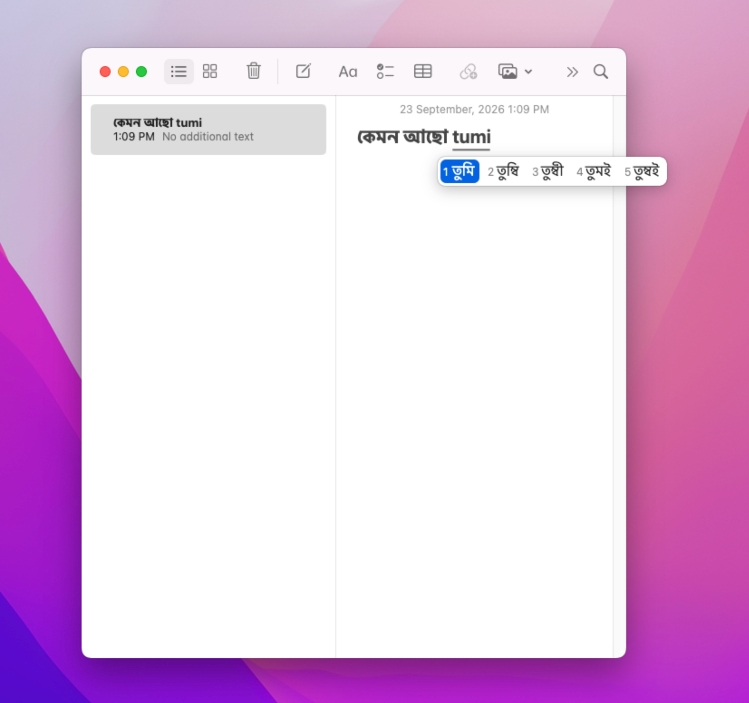
tumi and pick তুমি, or another spelling, from the candidate bar.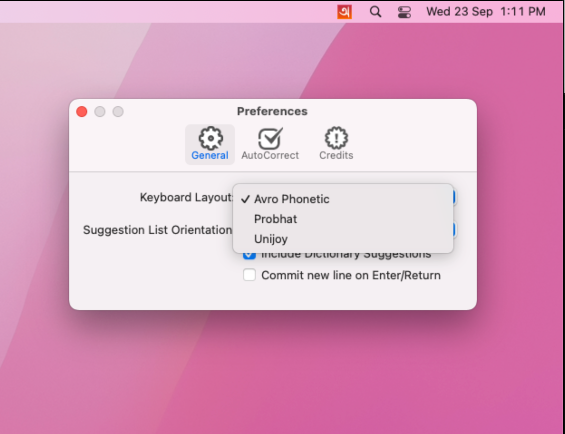
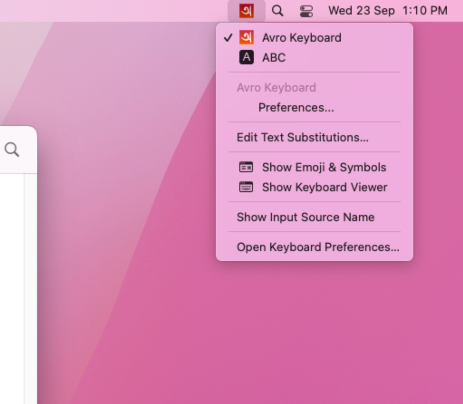
About a minute, either way.
Use Homebrew, or download the DMG and double-click.
Remove the original iAvro first
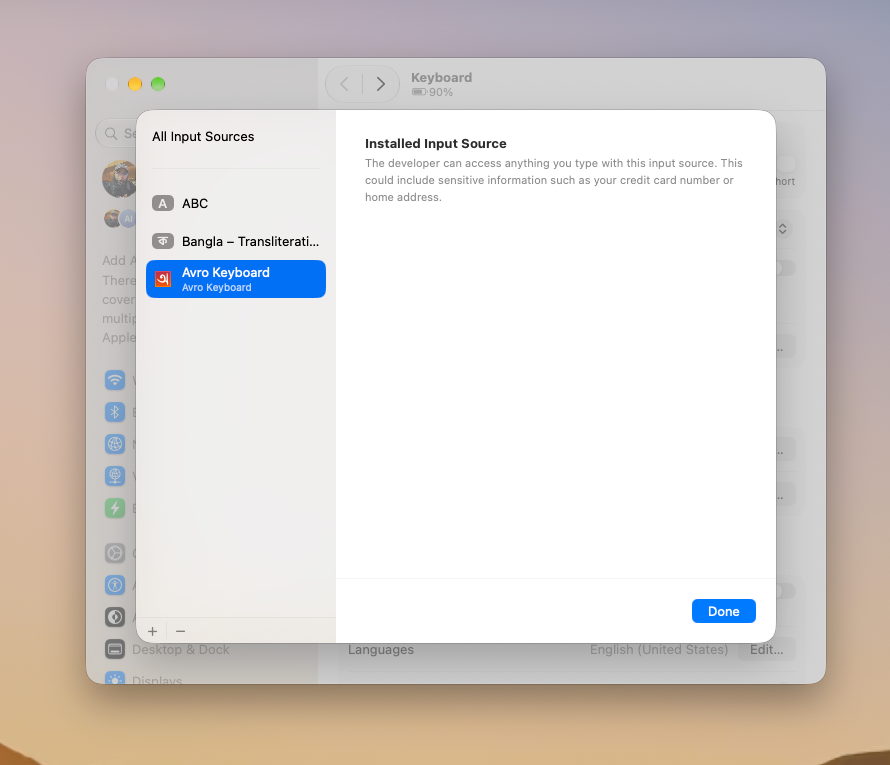
If you had the original iAvro (com.omicronlab.inputmethod.AvroKeyboard) installed, remove it, or two Avro Keyboard entries appear in the input menu and macOS may keep loading the old one.
- Remove Avro Keyboard from System Settings → Keyboard → Input Sources → Edit…
- Delete
Avro Keyboard.appfrom~/Library/Input Methodsor/Library/Input Methods(in Finder press ⌘ ⇧ G and paste the path). - Log out and back in, then install below. The old personal dictionary and preferences are not carried over.
With Homebrew
$ brew install --cask aminulbd/tap/avroInstalls the app into ~/Library/Input Methods. Update later with brew upgrade --cask avro, remove with brew uninstall --cask avro. Then switch to it from the input menu in the menu bar.
Manually
- Download the DMGGet
Avro-Keyboard-universal.dmgfrom the latest release. There are alsoapple-siliconandintelbuilds if you prefer a smaller one. - Open it and click InstallOpen the DMG and double-click Avro Keyboard. It copies itself into
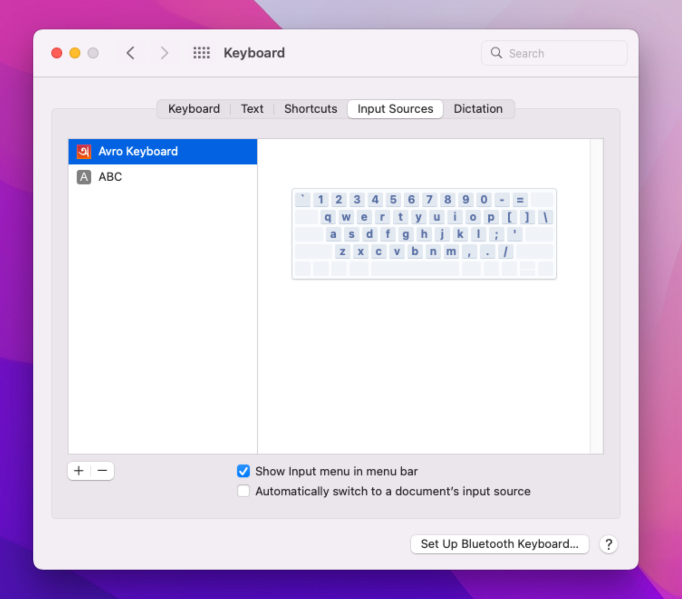
~/Library/Input Methods(for your user only) and adds itself to your input sources. - Start typingSwitch to it from the input menu in the menu bar, or with ⌃ Space.
Supported macOS versions
Runs on macOS 12 Monterey and every later release, on Apple Silicon (M1, M2, M3, M4, M5, M6 and later) and Intel Macs, from one universal build. macOS 11 Big Sur and earlier are not supported.
- macOS 27Golden GateApple Silicon
- macOS 26TahoeApple Silicon · Intel
- macOS 15SequoiaApple Silicon · Intel
- macOS 14SonomaApple Silicon · Intel
- macOS 13VenturaApple Silicon · Intel
- macOS 12MontereyApple Silicon · Intel
Build from source.
Requires Xcode 16 or later. No external dependencies.
Open AvroKeyboard.xcodeproj in Xcode and build the Avro Keyboard scheme, or use the command line.
The built app lands at build/Build/Products/Release/Avro Keyboard.app.
Bundle identifier: app.aminul.inputmethod.AvroKeyboard
$ git clone https://github.com/AminulBD/iAvro.git
$ cd iAvro

$ xcodebuild -project AvroKeyboard.xcodeproj \
    -scheme "Avro Keyboard" \
    -configuration Release \
-derivedDataPath buildEverything lives in the repository.
These are the useful entry points.
- Typing guideEvery letter, sign and conjunct with Avro Phonetic, Probhat and Unijoy, with full tables.→
- READMEInstallation, building, and the full CI and release guide.↗
- ReleasesDMG installers and zipped apps for every tagged version, with release notes.↗
- Signing & notarizationWhich repository secrets make CI produce Developer ID-signed, notarized builds.↗
- CI buildsRun the Build workflow by hand to get artifacts for any commit.↗
- IssuesBugs, wrong transliterations, feature requests.↗
- Upstream projectThe original iAvro repository by Rifat Nabi that this fork builds on.↗
Built on a lot of people's work.
Avro Keyboard on the Mac exists because of them. This fork stands on their work.

Rifat Nabi
Created iAvro in 2012, the original Avro Keyboard port for OS X, and maintained it for years across Yosemite, Sierra and beyond.

Aminul Islam
Rewrote the app in Swift, dropped CocoaPods, added universal Apple Silicon and Intel builds with DMG packaging, and set up signed and notarized releases via GitHub Actions.
Also thanks to
- OmicronLab and Mehdi Hasan Khan, creators of the Avro phonetic layout and engine.
- Sarim Khan and Muhammad Mominul Huque, iAvro contributors.
- Everyone who filed issues and tested builds over the years.
Get typing in Bangla.
Free, open source, and universal. Install it in about a minute.